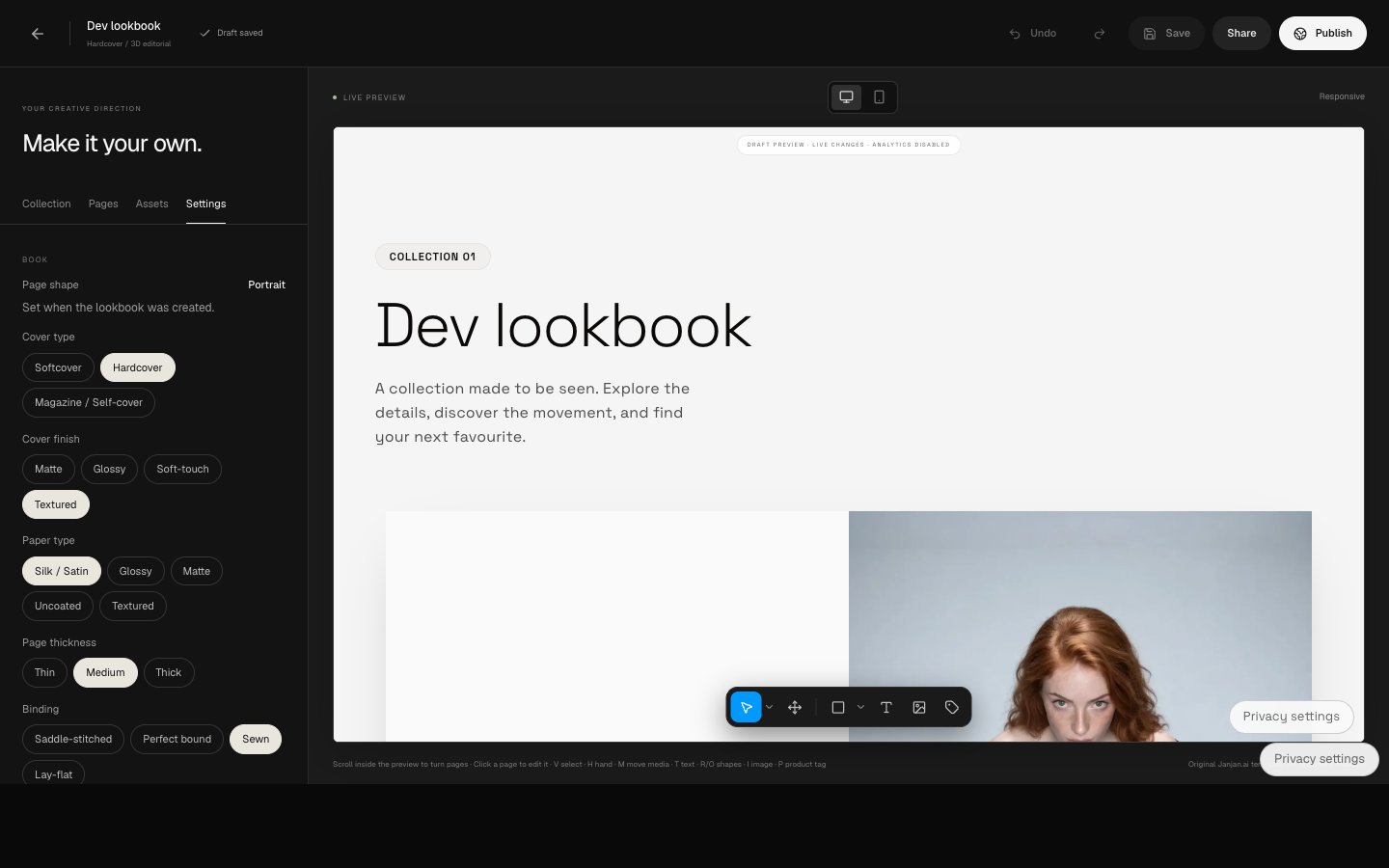
Navigate the editor
Open a lookbook and use Collection, Pages, Assets, and Settings to work on different parts of it. Scroll inside the preview to turn pages and select a page to edit it. Switch between desktop and mobile preview to check the experience on different screens.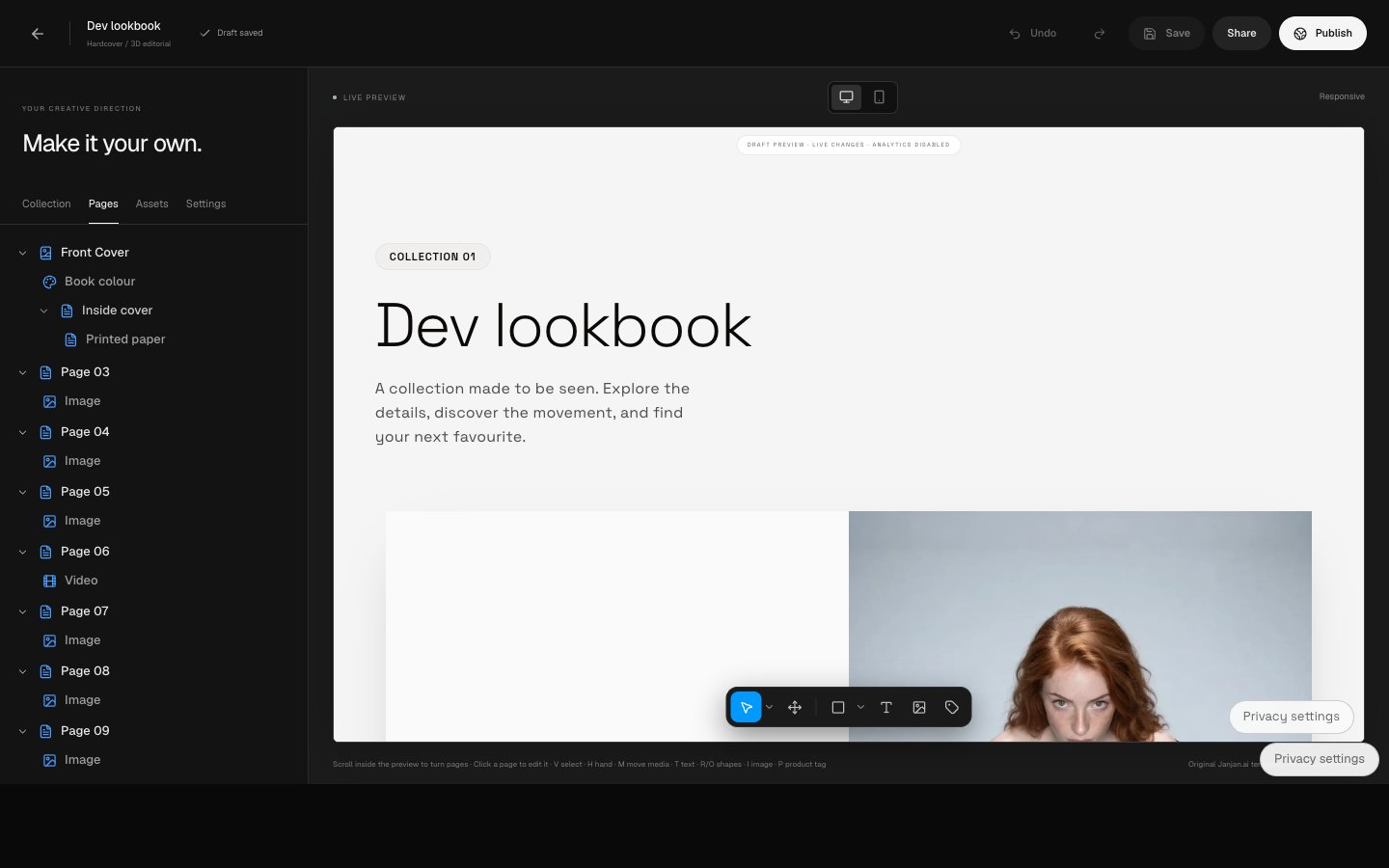
Edit pages and elements
- Open Pages and select the page you want to change.
- Use the available page settings and layouts to adjust the page or replace its media.
- Use the canvas tools to add or select elements such as text, images, shapes, and product tags. Select an element to adjust its settings.
- Use Add page to extend the sequence. Deleting a page removes it from the sequence and shifts the remaining pages forward.