DigiLookbook stores images and videos in your workspace asset library so you can use them in your lookbooks.

Upload files

  1. Open Asset library in your workspace and select Upload media, or open Assets in the editor.
  2. Choose your files. The interface lists JPEG, PNG, WebP, and MP4 files, up to 25 MB each.
  3. Wait for a file to finish processing before using it. If processing fails, try uploading it again.
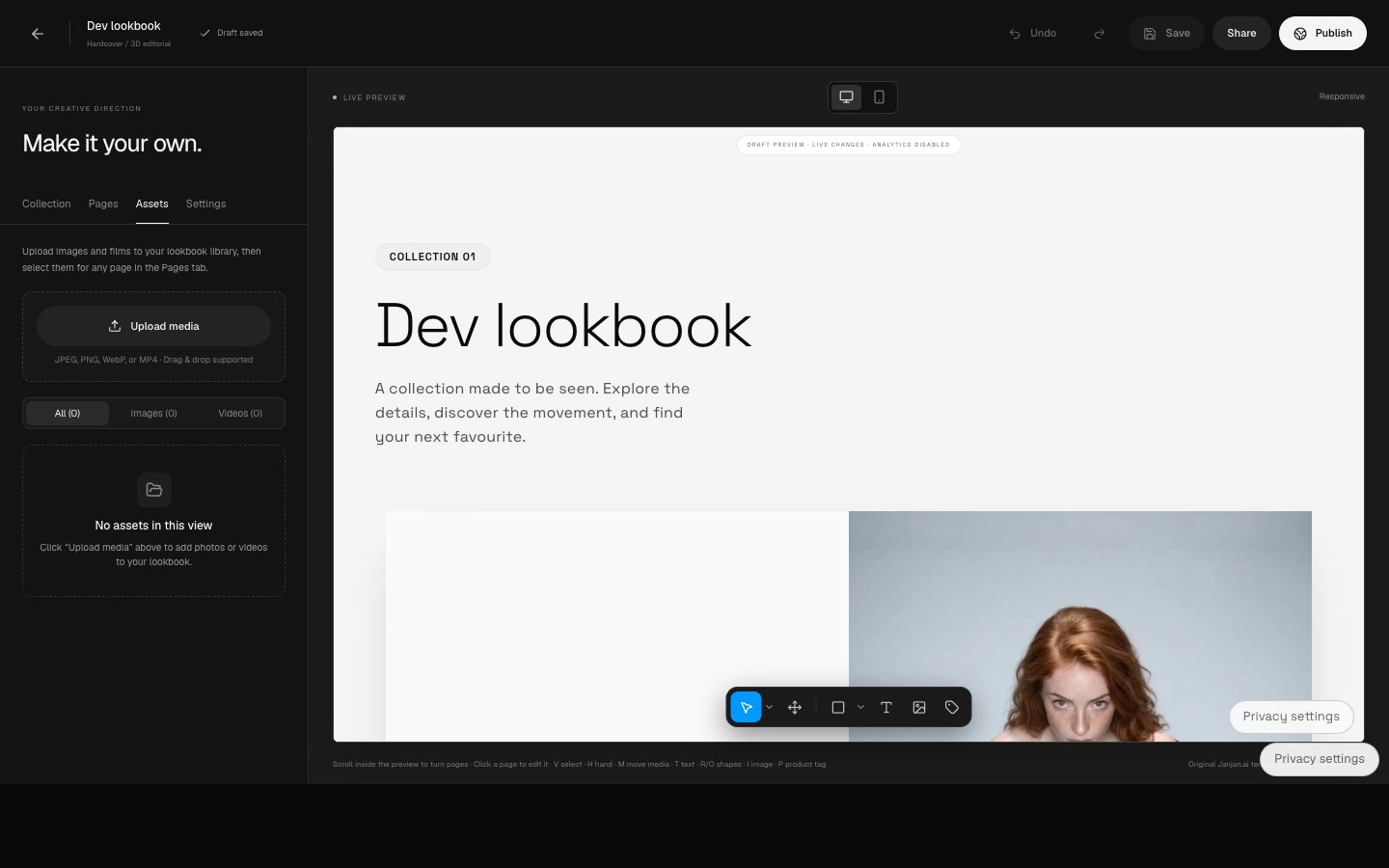
Editor Assets tab with the Upload media button and media filters

Add media to a lookbook

In the editor, open Assets and select a file for a page, or select a page and use its media controls. The editor also offers uploads for page media, page backgrounds, and cover images. Check the result in the preview and select Save.

Remove media

Use the asset’s actions in the library to delete it. If an asset is in use, replace it in the listed lookbooks first. Deleting an asset removes it from the library and storage and cannot be undone.